Creating CSS animations using Adobe After Effects

Adobe After Effects is undoubtedly the world-leading solution for Motion graphics and Special FX. From movies through television to game studios, it is the go-to tool for a great range of tasks – keying, composing, tracking (to name a few). Furthermore, it has a vast and very active community and a great ecosystem of third-party plugins.
In this tutorial, you will learn how to use After Effects to create special FXs that can be incorporated into the UI created with Coherent Labs’ Tech.

There are three major steps:
- FX authoring
- Assets export
- CSS animations
FX authoring
The first step is to create the actual effect. Wе’ll start with a png image with a transparent background which would give us the shape for the effect. One way to get it is to use auto-trace (Layer/Auto-trace), which automatically takes the layer's outline and creates a mask from it.

Then you need to create a new solid layer and paste the mask. To copy the mask from layer to layer simply select the mask lane and press ctrl+c. Then select the other layer and press ctrl+v. (Tip: if you want to resize the mask, you can activate the free transform from Layer/Mask and Shape path/Free transform points.

Now that we have the shape, let’s add the actual effect. This could be done with the built-in tools of After Effects, but it’s far easier with an awesome free plugin called Saber from videocopilot – After you’ve installed it, just search for it in the Effects panel and drag and drop it to the solid layer.
Saber settings A few important settings that need to be specified in the Effect controls panel:
- customize core – core type – Layer masks (this makes the effect follow the shape of the mask that we previously created)
- composite setting – transparent (this makes the actual transparent background)
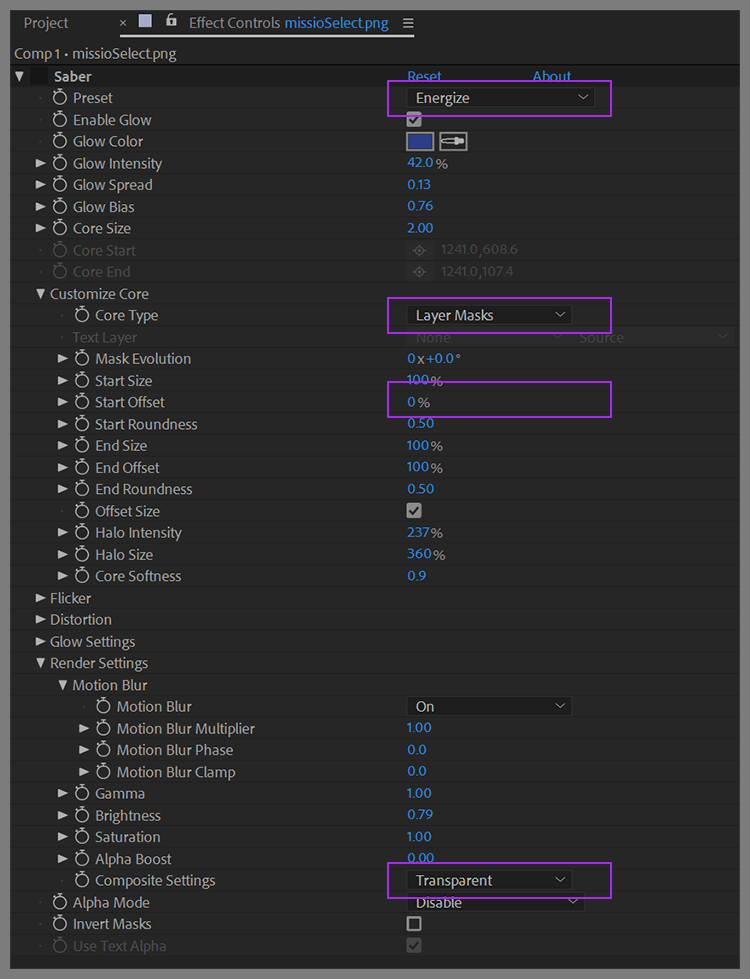
Then we can play with the rest of the settings to get the desired end effect. In this case, we are using the “energize” preset and animation of the Start offset setting. And here’s the finished effect!

2. Asset Export
Once we have completed the effect, we need to export it from After Effects. There are two major options – spritesheet or transparent video. The video is pretty straightforward (here’s a tutorial just in case) so we’ll focus on the spritesheet. Basically, we would want to create a flipbook animation through the spritesheet in which each of the sprites is a frame of the effect. To get that we can either export the frames as a series of pngs and arrange them in Photoshop or use a plugin called sheetah.
In both cases, the end result should be something like that – a single image with rows/columns of individual frames.

3. CSS animation
Now we need to make the animation happen in the actual UI of the game. UI developers typically carry out this part, but It’s actually quite simple. We can use the background-position CSS property to navigate along the x/y axis of the spritesheet. Then we just need to add steps in the CSS animations so that the animation “snaps” from one position to another in the spritesheet. The number of steps depends on the number of frames in the columns/rows of the actual spritesheet.
The full code of the sample is the following and the sample can be downloaded from this link.
<!DOCTYPE html>
<html>
<head>
  <style>
    body {
      background-color: black;
    }

    .container {
      position: absolute;
      top: 5vh;
      left: 5vh;
      width: 124.1vh;
      height: 35.8vh;
    }

    .image {
      /* Set a placeholder image */
      top: 0%;
      left: 0%;
      width: 100%;
      height: 100%;
      background-image: url('image.png'); /* 2482x716 */
      background-size: cover;
      background-repeat: no-repeat;
    }

    .highlight {
      /* Set the highlight resource aligned over the image */
      position: absolute;
      top: -65%;
      left: -8%;
      width: 118%;
      height: 230%;
      background-image: url('spritesheet.png'); /* 1000x281 for a single frame */
      background-size: 1200% 800%; /* number of frames per axis * 100% */
      background-repeat: no-repeat;
    }
  </style>
</head>
<body>
  <div class="container">
    <div class="image"></div>
    <div id="highlight" class="highlight"></div>
  </div>
<script>
(function() {
  let highlight = document.querySelector('#highlight');
  let frameX = 0, frameY = 0;
  const animateHighlight = () => {
    if (++frameX > 11) {
      frameX = 0;
      if (++frameY > 7) {
        frameY = 0;
      }
    }
    highlight.style.backgroundPosition = `${100 / 11 * frameX}% ${100 / 7 * frameY}%`;
  };
  setInterval(animateHighlight, 33);
})();
</script>
</body>
</html>
Please sign in to leave a comment.
Comments
0 comments